Simulation Playbook
Run this playbook to configure and execute a GCBM simulation from the GCBM Assistant Simulation page.
Document Control
| Field | Value |
|---|---|
| Author | Geraldson Muluh |
| Owner | GCBM Assistant maintainers |
| Audience | Model operators and analysts |
| Last reviewed | 2026-03-27 |
| Review cadence | Monthly |
Prerequisites
- GCBM Assistant is installed and launches successfully.
- Python requirement for source installs is
>=3.10. - You have a valid project workspace with:
layers/raw/inventory/*.shp(or equivalent inventory shapefile path)- optional disturbance shapefiles
- input database files in
input_database/ - yield table CSV
Inputs Required
- Project directory root
- Inventory shapefile
- Disturbance shapefile(s), if applicable
- CBM defaults database (AIDB)
- Yield table
- Column mappings:
- age
- classifiers
- temperature source (column or TIF)
Procedure
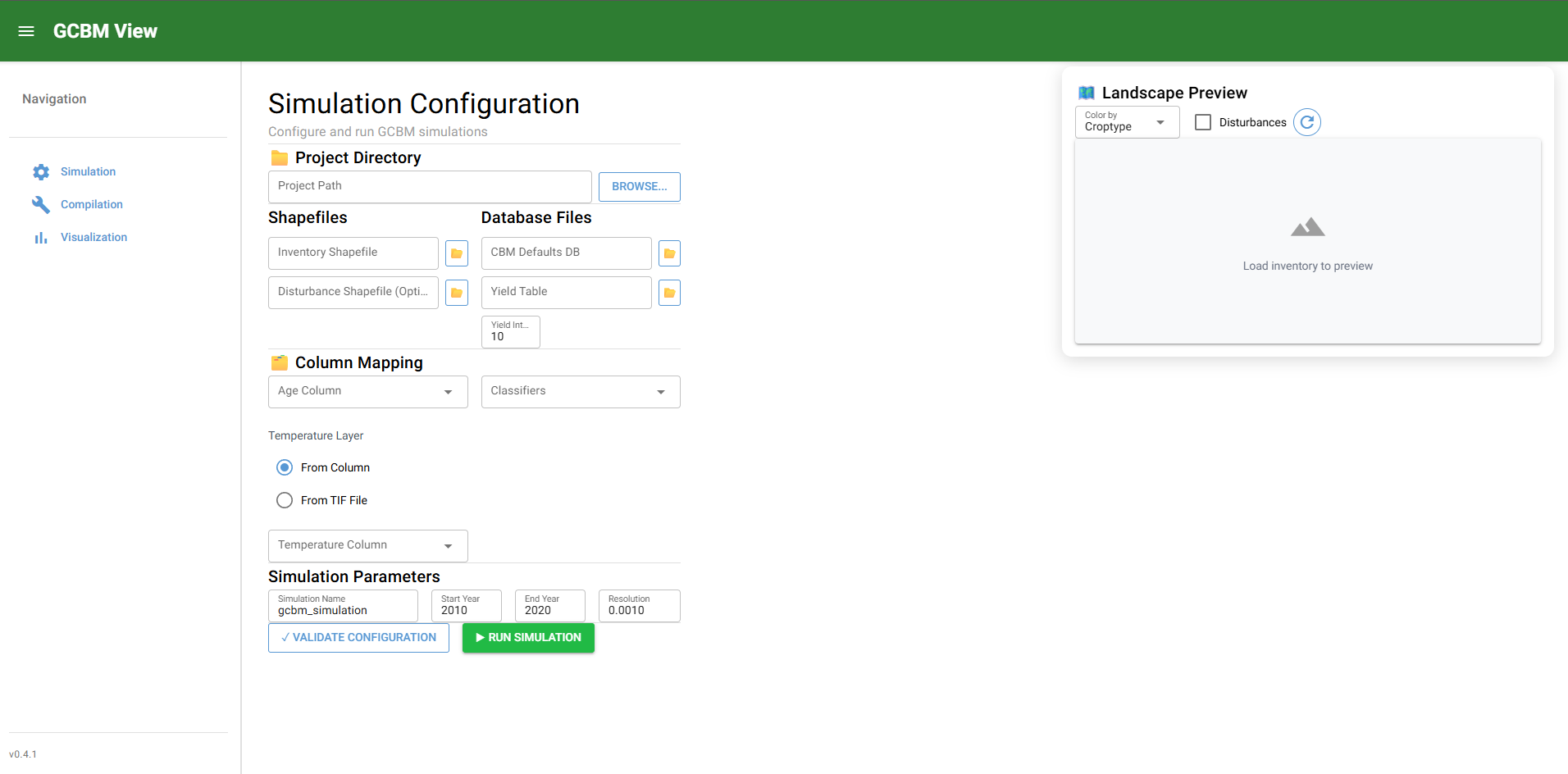
Step 1: Select Project Directory
- Open Simulation.
- Set project directory.
- Confirm auto-discovered files are populated.
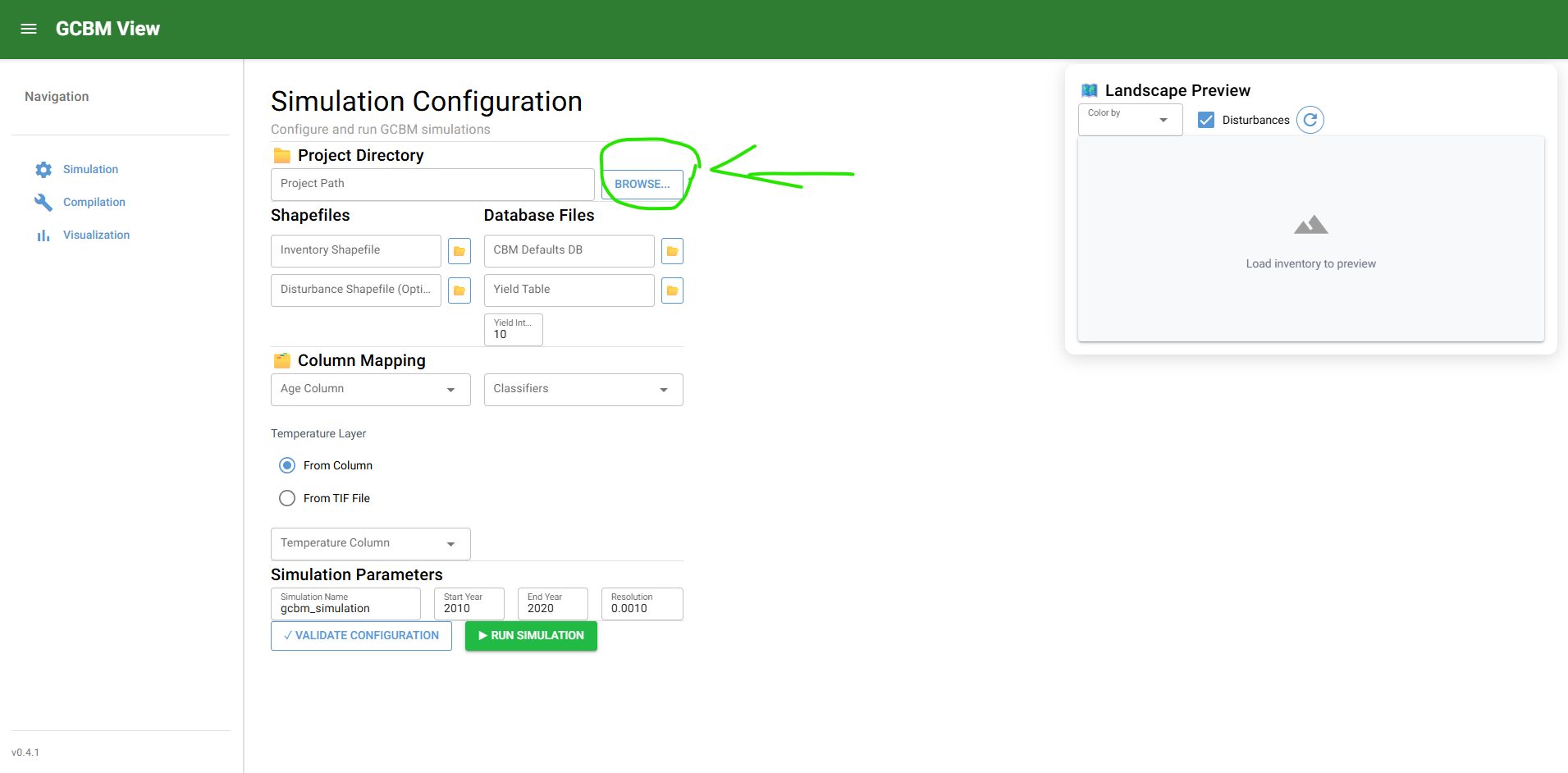
Step 2: Review Input Discovery
- Verify inventory and disturbance paths.
- Verify AIDB and yield table paths.
- Correct any missing path manually.
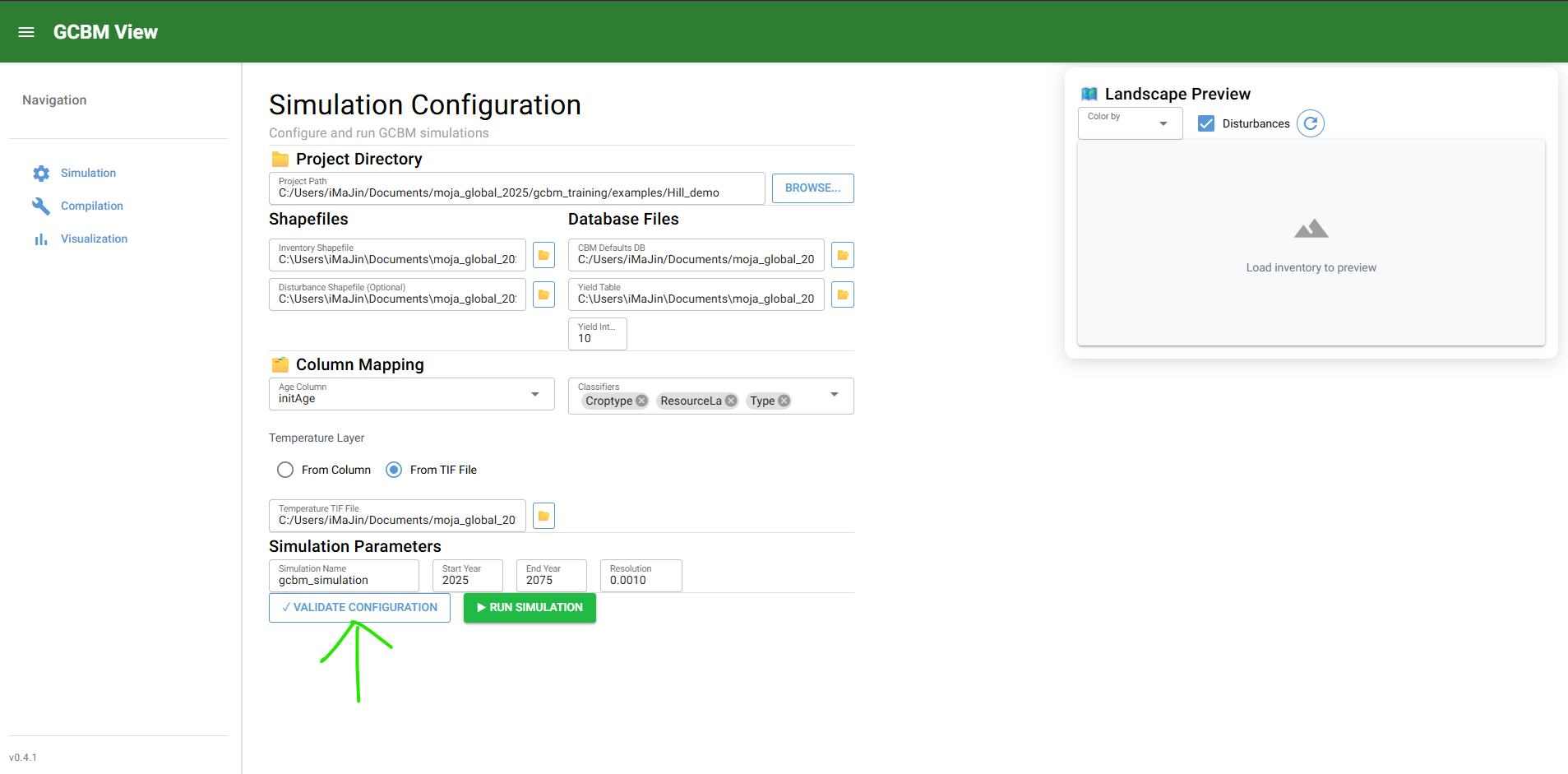
Step 3: Map Required Columns
- Select age column.
- Select required classifier columns.
- Choose temperature input type and field/path.
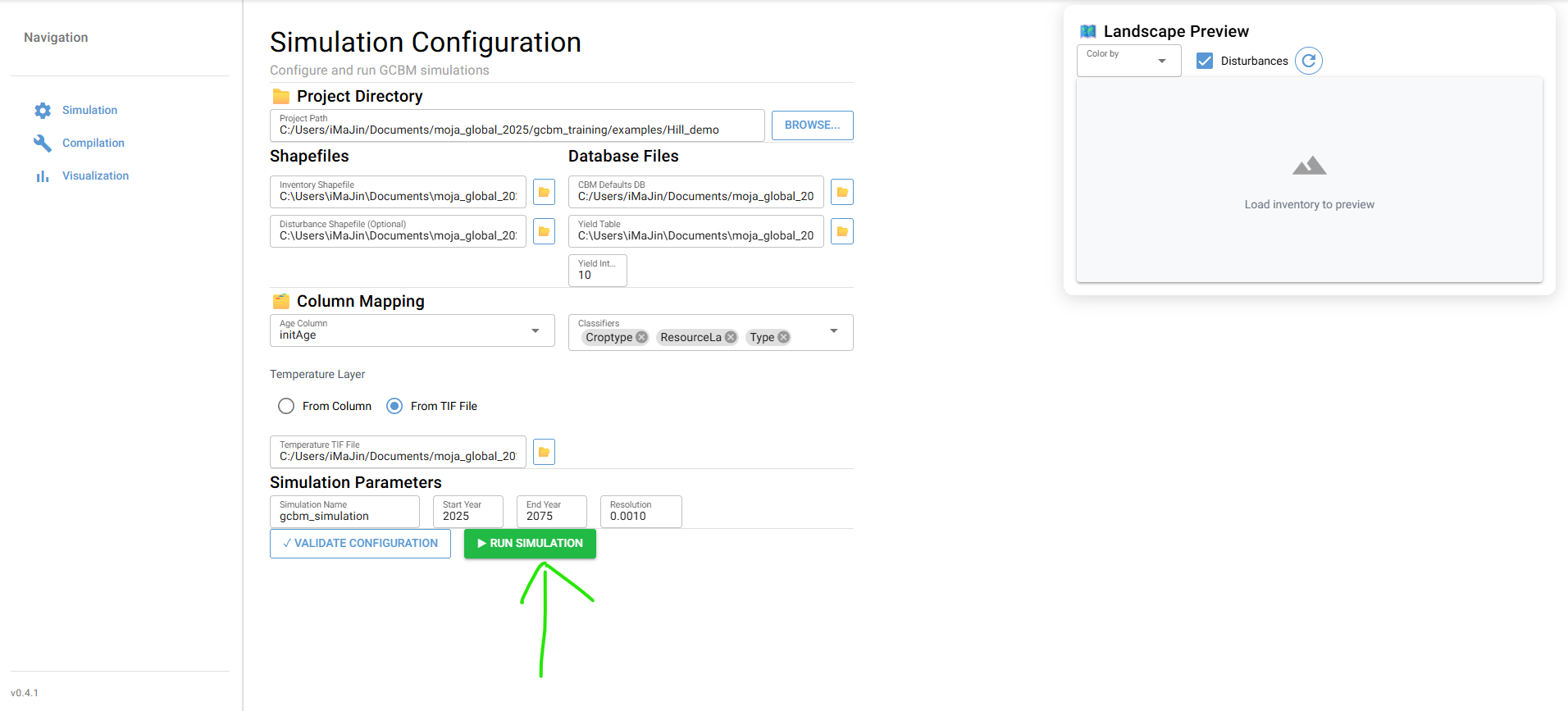
Step 4: Validate and Run
- Click Validate Configuration.
- Resolve any validation error before running.
- Click Run Simulation and monitor logs.
Expected Outputs
After a successful run, your project should contain:
gcbm_project/output/(model output database and run artifacts)gcbm_project/runtime configuration snapshots- simulation logs for traceability
Validation Checks
- Validation reports no missing required files or mappings.
- Run completes without unhandled exception in log panel.
- Output database exists in the project output directory.
Failure Modes and Recovery
| Failure mode | Typical cause | Recovery |
|---|---|---|
| Validation fails on missing files | Wrong project folder or naming mismatch | Re-select project root and manually set missing paths |
| Run fails after start | Invalid classifier mapping or bad input data | Re-check mappings and inspect first error line in logs |
| No output DB generated | Run interrupted or configuration invalid | Re-run after fixing validation/log errors |
Run Specifics and Auditability Checklist
Record these items for each run:
- GCBM Assistant version
- Simulation name and date-time
- Project path and key input file paths
- Start year, end year, resolution, classifier selections
- Validation status and run completion status
- Output DB path and log path